Have you ever wondered what that black window on your Windows computer is—the one where you can type commands instead of clicking buttons? This window is called the Command Prompt, and learning How To Use Command Prompt many of your daily computer tasks.
If you haven’t used it before, there is no need to worry. You don’t need to be a computer expert or know complex programming to use it. With a few simple commands, you can check information, manage files, gain a better understanding of your computer, and perform various useful tasks.
In this beginner-friendly guide, let’s explore what the Command Prompt is, how it works, how to run it as an administrator, and what options are available if you want to use similar tools on your mobile phone.
What is the Command Prompt?
The Command Prompt, often referred to as CMD, is a Windows tool that allows you to interact with your computer by typing text commands.
Typically, you perform tasks in Windows by clicking on folders, buttons, and menus. However, the Command Prompt offers an alternative method for executing tasks by typing instructions.
Think of it as communicating with your computer using short, simple instructions.
For instance, you don’t need to manually open a folder to see its contents. Instead, you can simply type a command into the Command Prompt to view a list of the files and folders inside it.
Why Do People Use Command Prompt?
You might use Command Prompt for many basic computer tasks, such as:
- Checking your computer’s network information
- Viewing files and folders
- Moving between folders
- Creating directories
- Checking your Windows version
- Running certain Windows utilities
- Troubleshooting common computer problems
- Learning basic command-line skills
Most of us don’t need Command Prompt every day, but knowing a few commands can be surprisingly useful.
How to Open Command Prompt in Windows
Before learning commands, let’s see how you can open Command Prompt.
Method 1: Use Windows Search
This is probably the easiest method for beginners.
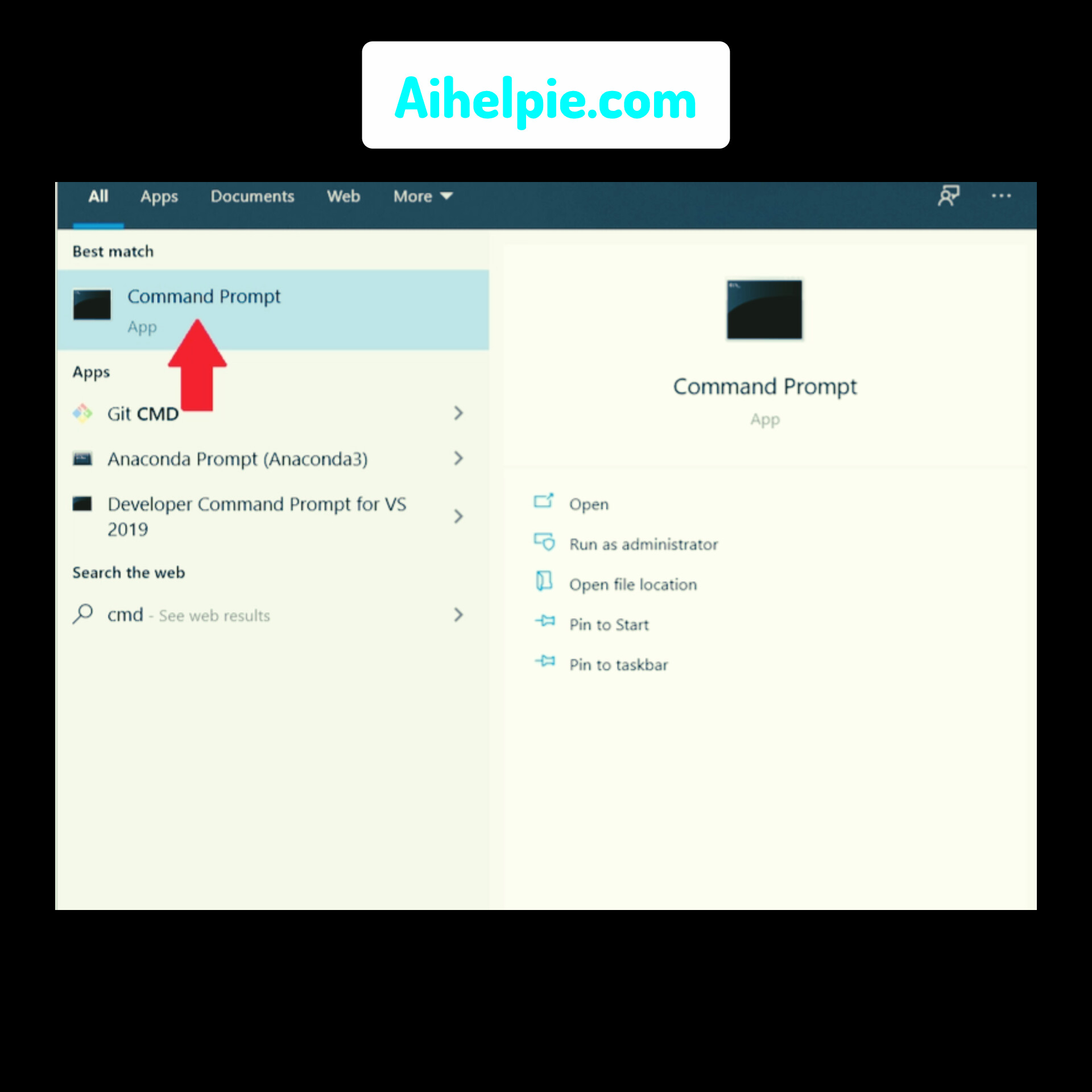
- Click the Start button.
- Type Command Prompt or CMD in the search box.
- Select Command Prompt from the results.
- A black window will appear.
That’s it. You are now ready to enter commands.
Method 2: Use the Run Window
You can also use the Run dialog box.
- Press Windows + R on your keyboard.
- Type
cmd. - Press Enter.
Command Prompt should open immediately.
Image suggestion: Add a screenshot showing Windows Search with “Command Prompt” typed into the search box.
How to Use Command Prompt: Basic Commands
Now comes the fun part. Let’s try a few simple commands.
Don’t worry about memorizing everything. You can learn them gradually as you use Command Prompt.
1. DIR — View Files and Folders
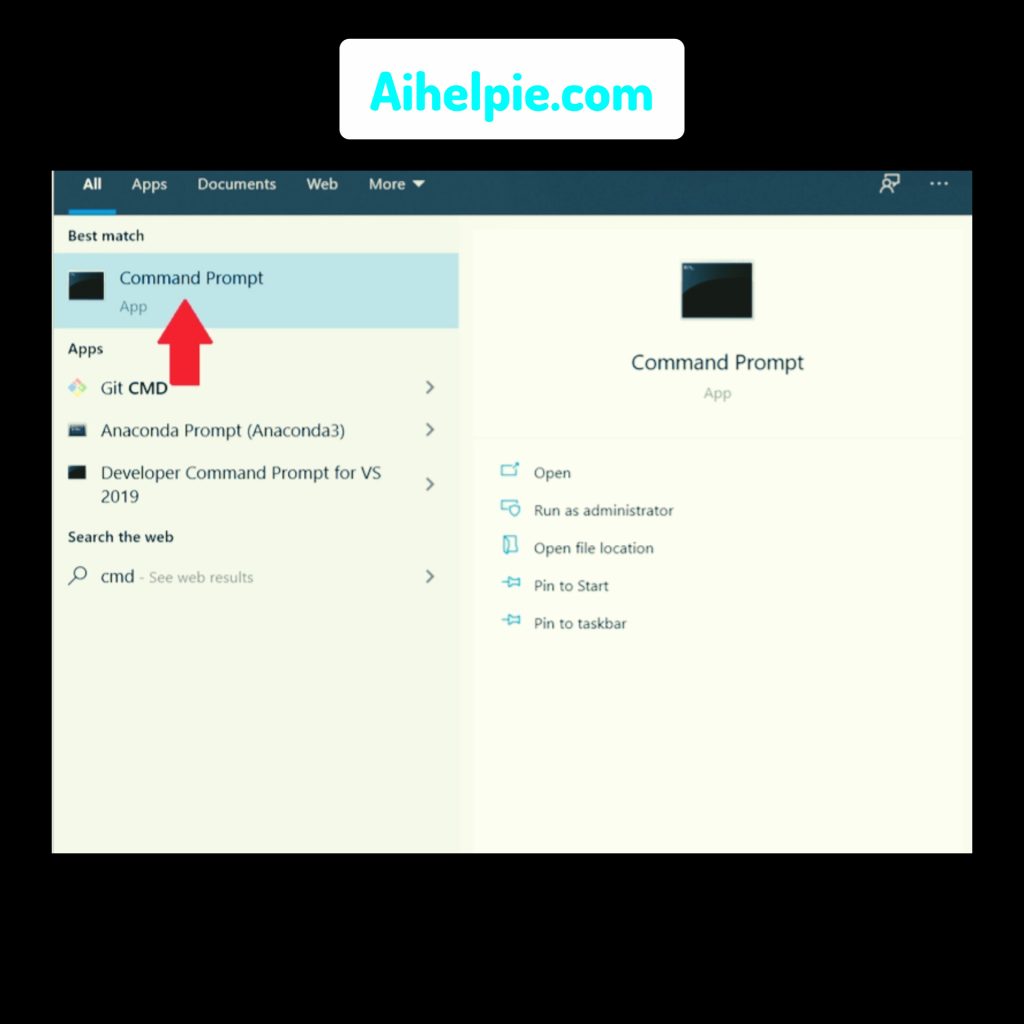
The dir command shows files and folders in your current location.
Type:
dir
Then press Enter.
You’ll see a list of items stored in that folder.
2. CD — Move Between Folders
The cd command helps you move from one folder to another.
For example:
cd Documents
This tells Command Prompt to move into the Documents folder if it exists in your current location.
You can also use:
cd ..
This moves you one level back.
3. CLS — Clear the Screen
Have you entered several commands and now the window looks crowded?
Use:
cls
Press Enter, and the screen will be cleared.
Your previous commands aren’t being deleted from your computer. You’re simply clearing the visible Command Prompt window.
4. MKDIR — Create a Folder
Want to create a new folder?
You can use:
mkdir MyFolder
This creates a folder named MyFolder in your current location.
5. VER — Check Windows Version
Want to quickly see your Windows version information?
Try:
ver
Command Prompt will display the Windows version information available through that command.
A Simple Real-Life Example
Imagine your computer is a large library.
The folders are like different sections of the library, while files are like books stored inside those sections.
Using Windows normally is like walking around the library and looking at signs to find what you need.
Command Prompt is more like giving the librarian a direct instruction.
For example, cd is like saying, “Take me to this section,” while dir is like asking, “What books are available here?”
Once you understand this idea, Command Prompt becomes much less confusing.
How to use Command Prompt as administrator
Sometimes Windows requires higher permissions to perform certain system-level tasks.
That’s where Command Prompt as administrator can be useful.
But remember: administrator access gives commands more control over your computer, so you should only run commands that you understand and trust.
Open Command Prompt as Administrator
Here’s the simple method:
- Open the Start menu.
- Search for Command Prompt.
- Right-click Command Prompt.
- Select Run as administrator.
- Windows may display a permission confirmation.
- Select Yes if you want to continue.
You may notice that the Command Prompt window indicates that it has administrator privileges.
When Should You Use Administrator Mode?
You may need administrator mode for certain Windows maintenance or configuration tasks.
For normal commands such as checking folders or moving between directories, standard Command Prompt is usually enough.
So, do you always need administrator access?
No.
Use it only when a task specifically requires elevated permissions.
Useful Command Prompt Tips for Beginners
Command Prompt may look simple, but a few small tips can make your experience much easier.
Use the Tab Key
When typing a folder or file name, the Tab key can help complete names automatically in many Command Prompt situations.
This can save you from typing long names manually.
Read the Message Carefully
If a command doesn’t work, don’t panic.
Command Prompt usually displays a message explaining what went wrong. Read it carefully and check your spelling.
Start With Simple Commands
You don’t need to learn dozens of commands on your first day.
Start with:
dircdcd ..clsmkdirver
Once you’re comfortable with these, you can explore other Windows commands.
How to use command prompt in mobile
Now you might be wondering: How to use command prompt in mobile?
Here’s an important difference.
Windows Command Prompt is a Windows desktop tool, so you won’t normally find the exact same CMD application on an Android or iPhone device.
However, some mobile apps can provide a terminal or command-line environment.
Android Phones
On Android, certain terminal applications can provide a command-line interface.
The experience is different from Windows CMD because Android uses a different operating system environment.
Some commands available on Windows may therefore not work the same way on Android.
If you’re a beginner, it’s best to learn basic terminal concepts first rather than expecting your phone to behave exactly like a Windows PC.
iPhone and iPad
iPhone and iPad also don’t provide the traditional Windows Command Prompt.
Some apps can provide command-line or remote-terminal experiences, but their features depend on the app and the device environment.
So, if your goal is specifically to learn Windows Command Prompt, a Windows computer is the easiest place to practice.
Command Prompt vs Windows PowerShell
Have you heard of PowerShell too?
Both Command Prompt and PowerShell allow you to enter commands, but PowerShell is a more advanced Windows command-line environment.
For beginners, Command Prompt can be easier to understand because many basic commands are simple and familiar.
You don’t have to choose one forever.
You can start with CMD and explore PowerShell later when you’re comfortable with command-line concepts.
Common Mistakes Beginners Should Avoid
Learning Command Prompt is easy when you take things slowly.
Here are a few mistakes worth avoiding:
- Typing commands without understanding what they do
- Changing system settings unnecessarily
- Using administrator mode for every task
- Assuming Windows and mobile commands are identical
- Getting worried when a command produces an error
- Trying complicated commands before learning the basics
The golden rule is simple: understand a command before running it.
Conclusion
So, how to use command prompt doesn’t have to be a difficult question. Think of Command Prompt as another way to communicate with your computer. Instead of clicking through menus, you type clear instructions and let Windows respond.
Start with just a few basic commands. Try dir, cd, cls, and mkdir in a safe folder, and slowly build your confidence. What if you spend just 10 minutes practicing today? You might be surprised by how quickly that strange black window starts to feel familiar.